Official Documentation â€ĸ v1.7.3

Step-by-Step Setup & Permission Justifications

Everything you need to configure PESU WiFi for seamless captive portal authentication, zero-drop standby, and smart campus AP roaming across PES University and Amaatra Hostel.

Step 1

Download & Sideload the APK

Install the signed release APK directly onto your Android device without third-party app stores.

  • Download pesu-wifi-v1.7.3-stable.apk from the official release page.
  • When opening the file, Android may warn about installing unknown apps.
  • Tap Settings and toggle on "Allow from this source" for your browser or file manager.
  • Tap Install to complete setup.
💡 Safe & Clean: Built with Android Keystore encryption, zero trackers, and completely open source.
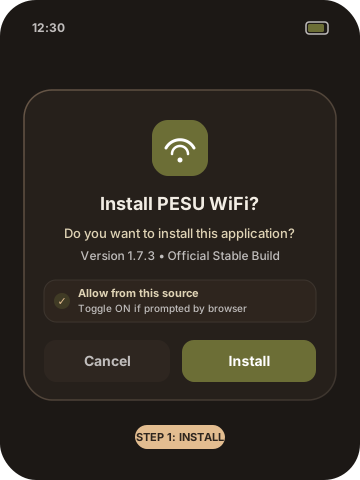
Illustration of Step 1 APK Installation dialog
Step 2

Grant Notifications Permission

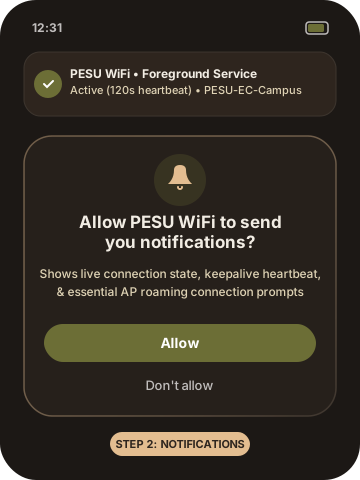
Essential on Android 13+ (API 33+) for running background keepalive and receiving the AP connection prompt.

  • On first launch, a system prompt will ask: "Allow PESU WiFi to send you notifications?"
  • Tap Allow.
  • Why it's essential: Notifications maintain the Android Foreground Service (preventing Android from killing the keepalive engine during lectures) and are mandatory for delivering the AP switching connection notification.
🔔 Tip: The persistent notification displays your active IP, Wi-Fi SSID, and includes a 1-tap Disconnect button.
Illustration of Step 2 Notification Permission prompt
Step 3

Whitelist Battery & Exact Alarms

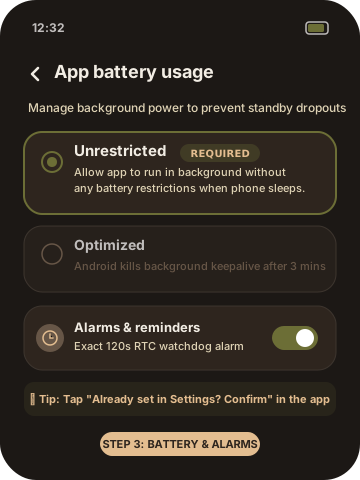
Cyberoam firewalls drop idle sessions after 3 minutes (180s). Unrestricted battery settings ensure background heartbeats fire on schedule when your phone is in your pocket.

  • In the in-app setup dialog, tap Whitelist next to Unrestricted Battery.
  • In system settings, set App battery usage to Unrestricted.
  • Tap Enable next to Exact Keepalive Alarms and toggle Alarms & reminders to Allowed.
  • Return to the app and tap "Already set in Settings? Confirm" if prompted.
⚡ Battery Friendly: Uses a microscopic 120s RTC heartbeat (±30s jitter) that consumes less than 0.2% battery over a 10-hour day.
Illustration of Step 3 Battery Optimization and Exact Alarms settings
Step 4 â€ĸ Crucial

Approve the AP Switching Notification

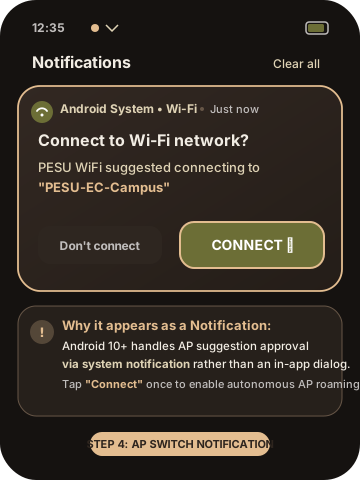
Android's system security model requires users to approve suggested Wi-Fi networks via a system notification.

  • When near a campus router (e.g. PESU-EC-Campus, PESU-RR-Campus, AMAATRA-HOSTEL), pull down your Notification Drawer.
  • Locate the notification from Android System â€ĸ Wi-Fi titled:
    "Connect to Wi-Fi network? PESU WiFi suggested connecting..."
  • Tap the blue/accent CONNECT action button.
  • Once approved, Android permanently allows PESU WiFi to steer your device between campus routers and twin access points with zero manual steps!
đŸ“ļ Note: If you accidentally dismiss it, simply reconnect to campus Wi-Fi or toggle Wi-Fi OFF and ON in quick settings.
Illustration of Step 4 Android System Notification for Wi-Fi Suggestion
Step 5

Add Account & Connect

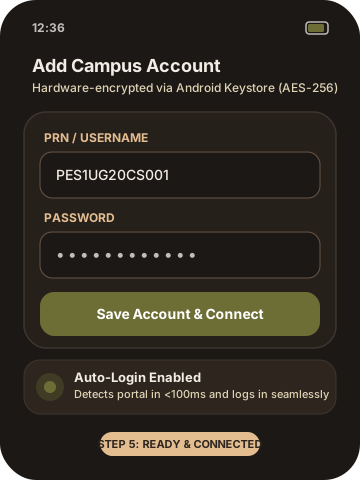
Store your student credentials securely and authenticate to the Cyberoam portal with a single tap.

  • Enter your PRN / SRN (e.g., PES1UG20CS001) and campus Wi-Fi password.
  • Passwords are encrypted locally with AES-256 GCM inside the Android Keystore.
  • Tap Save Account & Connect.
  • The app verifies captive portal reachability in <100ms, logs you in, and engages the background keepalive guard!
📋 Universal Diagnostic Logs: Tap the Logs icon in the top right of the app anytime (built into both stable and tester builds) to inspect live captive portal handshakes, keepalive loops, or copy logs for quick troubleshooting.
Illustration of Step 5 Account credentials form

Manufacturer-Specific Background Settings

Some Android manufacturers (MIUI, HyperOS, One UI, ColorOS) include custom aggressive battery managers that aggressively kill background apps unless explicitly permitted. Follow your device's instructions below:

📱 Xiaomi / Redmi / POCO

MIUI / HyperOS

  1. Long-press PESU WiFi app icon → tap App Info (â„šī¸).
  2. Open Other permissions → find "Change Wi-Fi connectivity" → select Always allow.
  3. Toggle Autostart to ON.
  4. Under Battery saver, select No restrictions.

📱 Samsung Galaxy

One UI

  1. Open Settings → Battery and device care → Battery.
  2. Tap Background usage limits.
  3. Tap Never sleeping apps → tap + → add PESU WiFi.
  4. In App Info → Battery → choose Unrestricted.

📱 OnePlus / Oppo / Realme

OxygenOS / ColorOS

  1. Long-press app icon → App Info → Battery usage.
  2. Enable Allow background activity.
  3. Enable Allow auto-launch.
  4. Ensure battery optimization is set to Don't optimize.

📱 Vivo / iQOO

FuntouchOS / OriginOS

  1. Open Settings → Battery → Background power consumption management.
  2. Locate PESU WiFi.
  3. Select High background power consumption to prevent silent termination.

Complete Permissions Justification & Privacy

PESU WiFi operates with complete transparency. We request only the minimal permissions required to interact with campus Wi-Fi hardware and firewalls. All logic is open source and auditable.

Notifications POST_NOTIFICATIONS Runtime (Android 13+)
Why PESU WiFi needs this: Required to run the persistent Foreground Service status notification in your pull-down shade showing active Wi-Fi link speed, gateway IP, and 1-tap Disconnect. Crucially, it allows Android to deliver the Wi-Fi Network Suggestion prompt so you can approve automated campus AP roaming.
🔒 No spam or promotional notifications; only live connection state and critical portal alerts.
Unrestricted Battery IGNORE_BATTERY_OPTIMIZATIONS System Whitelist
Why PESU WiFi needs this: Cyberoam firewalls expire inactive connections after 180 seconds. When your phone screen turns off, Android's Doze mode freezes background network sockets and deferred timers. Whitelisting the app ensures the 120s keepalive pulse fires punctually so your device never drops off the campus network.
🔒 Extremely light: wakes CPU for less than 150 milliseconds every 2 minutes. Negligible battery draw (<0.2% per day).
Exact Keepalive Alarms SCHEDULE_EXACT_ALARM System Permission (Android 12+)
Why PESU WiFi needs this: Standard inexact Android alarms can be delayed by 15 to 30 minutes to batch wakeups. Because the captive portal expires at 3 minutes, inexact alarms guarantee disconnection. Exact RTC alarms wake the CPU exactly on time to send the keepalive ping before the firewall drops the session.
🔒 Used exclusively for internal 120s (±30s jittered) watchdog keepalive scheduling.
Wi-Fi Network Identification ACCESS_FINE_LOCATION ACCESS_BACKGROUND_LOCATION Runtime / System
Why PESU WiFi needs this: Google considers Wi-Fi SSID (network name) and BSSID (access point MAC address) to be location-sensitive metadata in Android 8 through 12. Without this permission, Android returns <unknown ssid> and empty Wi-Fi scan results, making it technically impossible to detect whether you are connected to PESU-EC-Campus or AMAATRA-HOSTEL.
🔒 Zero GPS Tracking: The app never requests GPS coordinates, never accesses satellite location, and transmits no location data whatsoever.
Nearby Wi-Fi Devices NEARBY_WIFI_DEVICES Runtime (Android 13+)
Why PESU WiFi needs this: Introduced in Android 13 to allow apps to discover and interact with nearby Wi-Fi routers without needing location tracking permissions. Configured with neverForLocation flag in the manifest.
🔒 Strictly decoupled from physical GPS location.
Network Suggestion & Sockets CHANGE_WIFI_STATE CHANGE_NETWORK_STATE Normal Permission
Why PESU WiFi needs this: Allows the app to register WifiNetworkSuggestion targets with the Android system (e.g. PESU-EC-Campus, PESU-RR-Campus, AMAATRA-HOSTEL) and bind HTTP OkHttp authentication sockets directly to the Wi-Fi network interface to bypass VPNs or cellular data interference.
🔒 Does not alter private saved Wi-Fi networks or personal mobile data configurations.
Captive Portal Communication INTERNET ACCESS_NETWORK_STATE Normal Permission
Why PESU WiFi needs this: Sends HTTP POST authentication requests and keepalive XML heartbeats to campus Cyberoam gateways (172.16.1.1:8090, 10.*.*.*:8090) and checks connectivity status.
🔒 The app communicates only with local campus captive portal gateways. It never phones home or contacts external servers.
WakeLock & Boot Listener WAKE_LOCK RECEIVE_BOOT_COMPLETED Normal Permission
Why PESU WiFi needs this: WAKE_LOCK holds a brief 200ms CPU lock while transmitting a keepalive packet so the phone doesn't sleep mid-request. RECEIVE_BOOT_COMPLETED re-registers Wi-Fi connection listeners when you restart your phone so auto-login continues working seamlessly.
🔒 WakeLock automatically releases within milliseconds. Zero permanent battery drain.

Ready to Get Started?

Download the latest verified stable APK and enjoy uninterrupted Wi-Fi across campus.